Solutions Focus
Tapkin Focus
Tap to begin.
Tap when distracted.
Tap when finished.
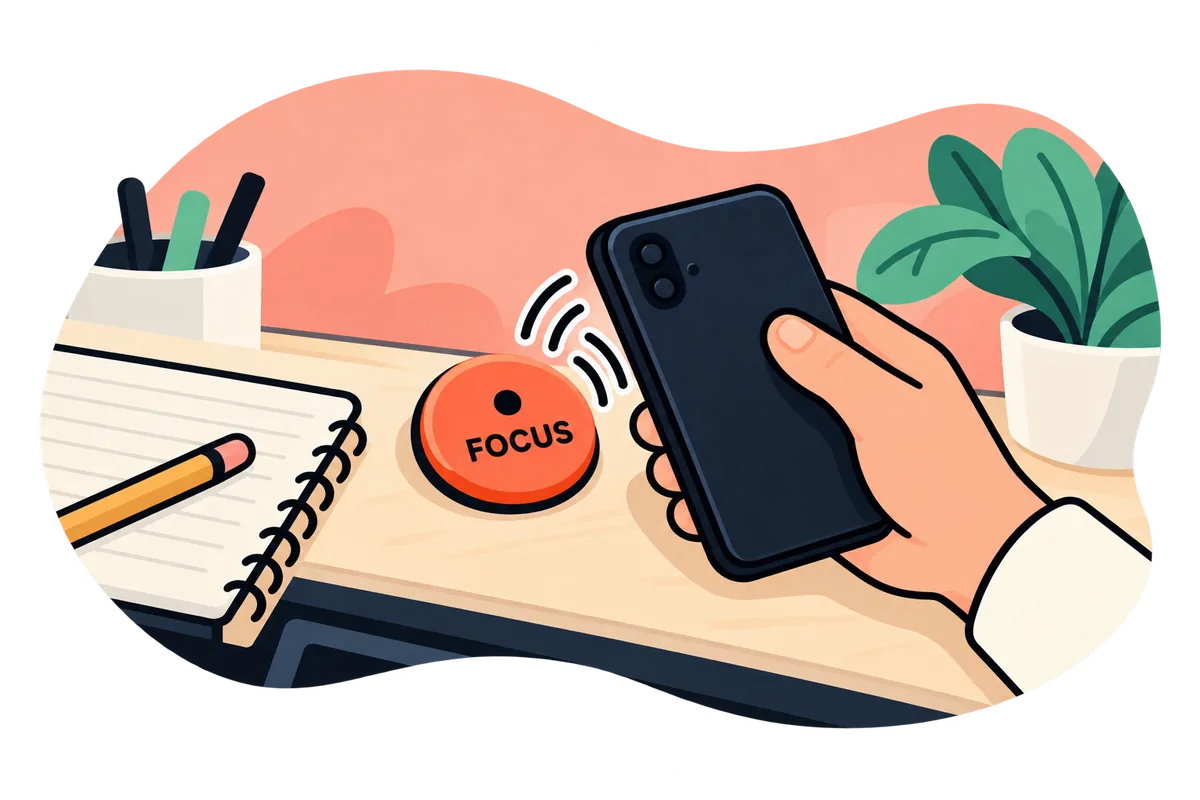
The first Tapkin pilot, available now. Free Apple Shortcuts you add to your iPhone and run from the Shortcuts app — no tags needed. Want each step to be a tap on your desk? NFC tags are an optional extra. No app, no account, no subscription — your sessions are saved as plain files in your own iCloud Drive.
What you need
- An iPhoneWith the Shortcuts app
- iCloud Drive turned onWhere your sessions are saved
- A few minutesOnce. After that, it's one action per step.
- Optional: three NFC tagsOnly to make it physical. NTAG213 stickers, 25–30 mm, and an iPhone XS or newer
Four shortcuts. Add all of them.
Open this page on your iPhone, tap each one and choose Add Shortcut. On a Mac they sync to your iPhone through iCloud. Then run Setup once, and use Start, Distracted and Done straight from the Shortcuts app. No tags needed.
The first time, each shortcut asks to use files and send notifications — allow them once.
- Once, first
Tapkin Focus - Setup
Creates your private Focus folder in iCloud Drive. Safe to run again — it never touches existing history.
Get Setupor download the file - To begin
Tapkin Focus - Start
Asks what you're working on and for how long, then starts a timer.
Get Startor download the file - When distracted
Tapkin Focus - Distracted
Counts an interruption with its time. No typing, the session keeps going.
Get Distractedor download the file - When finished
Tapkin Focus - Done
Asks how it went, saves the session and closes it.
Get Doneor download the file
Teach your iPhone three tags.
Focus works without tags. If you'd like each step to be a tap on your desk, get three NFC tags and label them START, DISTRACTED and DONE. A tag doesn't carry any instructions — your iPhone learns once that “this tag means Start”. That link stays on your phone.
- 1
Run Setup once, if you haven't yet
In the Shortcuts app, tap Tapkin Focus - Setup. You'll see “Tapkin Focus is ready” and a new folder in iCloud Drive › Shortcuts › Tapkin › Focus.
- 2
Link each tag to its shortcut
Repeat for the three tags:
- In Shortcuts, tap + and create an automation with the NFC trigger.
- Tap Scan and hold the tag near the top of the iPhone. Give it the tag's name.
- Turn Automation on and Notify off, so it runs straight away.
- Add Run Shortcut and pick the matching one:
Tag Runs START Tapkin Focus - Start DISTRACTED Tapkin Focus - Distracted DONE Tapkin Focus - Done On iOS versions before 26, the same options live in the Automation tab → + → NFC → Run Immediately.
- 3
Do one practice tap
Tap START, DISTRACTED and DONE once. The first time, each shortcut asks to use files and send notifications — allow them. They don't ask again.
If a tap shows “No bookmark found for file”, a permission is still waiting: open that shortcut in the Shortcuts app and tap ▶ once.

Then it's just the ritual.
- START what are you working on, and for how long?
- DISTRACTED noticed. Back to it.
- DONE how did it go? Saved.
Three files. Yours.
Everything stays in iCloud Drive › Shortcuts › Tapkin › Focus. Open the CSV files in Numbers or Excel, move them, or delete them. Tapkin has no server and never sees them.
- sessions.csv
- One row per finished session: task, planned and actual minutes, distractions, how it went.
- events.csv
- One row per DISTRACTED tap, with the time.
- state.json
- The session in progress, if any. Cleared by DONE.
Common messages.
- “Session already active”
- A session is still open. Run DONE to close it, then START again. START never overwrites a session by accident.
- “No active session”
- DISTRACTED and DONE only work after START. Nothing was saved, nothing was lost.
- “No bookmark found for file”
- A permission is waiting, and iOS can't ask while a tag runs the shortcut in the background. Open the shortcut in the Shortcuts app, tap ▶ once and allow what it asks. Only happens with NFC tags.
- “Could Not Run Start Timer”
- Another Clock timer is already running. Your session was saved before this step — stop the other timer next time.
- History missing after using two devices
- If you use Focus on the Mac and the iPhone within a minute or two, iCloud may keep the older copy of the file. Use one device per session.